
Pilofy Mac document editor: inserting tables and splitting or merging cells
How the upcoming Pilofy for Mac handles tables in its document editor: rows and columns, merging cells, column widths, backgrounds, and borders.

Tables are where the Pilofy Mac document editor needed the most work. Work documents use them all the time, like the agenda table in meeting minutes or the item table in a quote. This post covers tables on their own.
Inserting a table
Click the table button on the formatting bar and a grid of cells opens. Sweep across it with the mouse to the size you want, and the table goes in at that size. If you already know the size, you can type in the number of rows and columns instead.
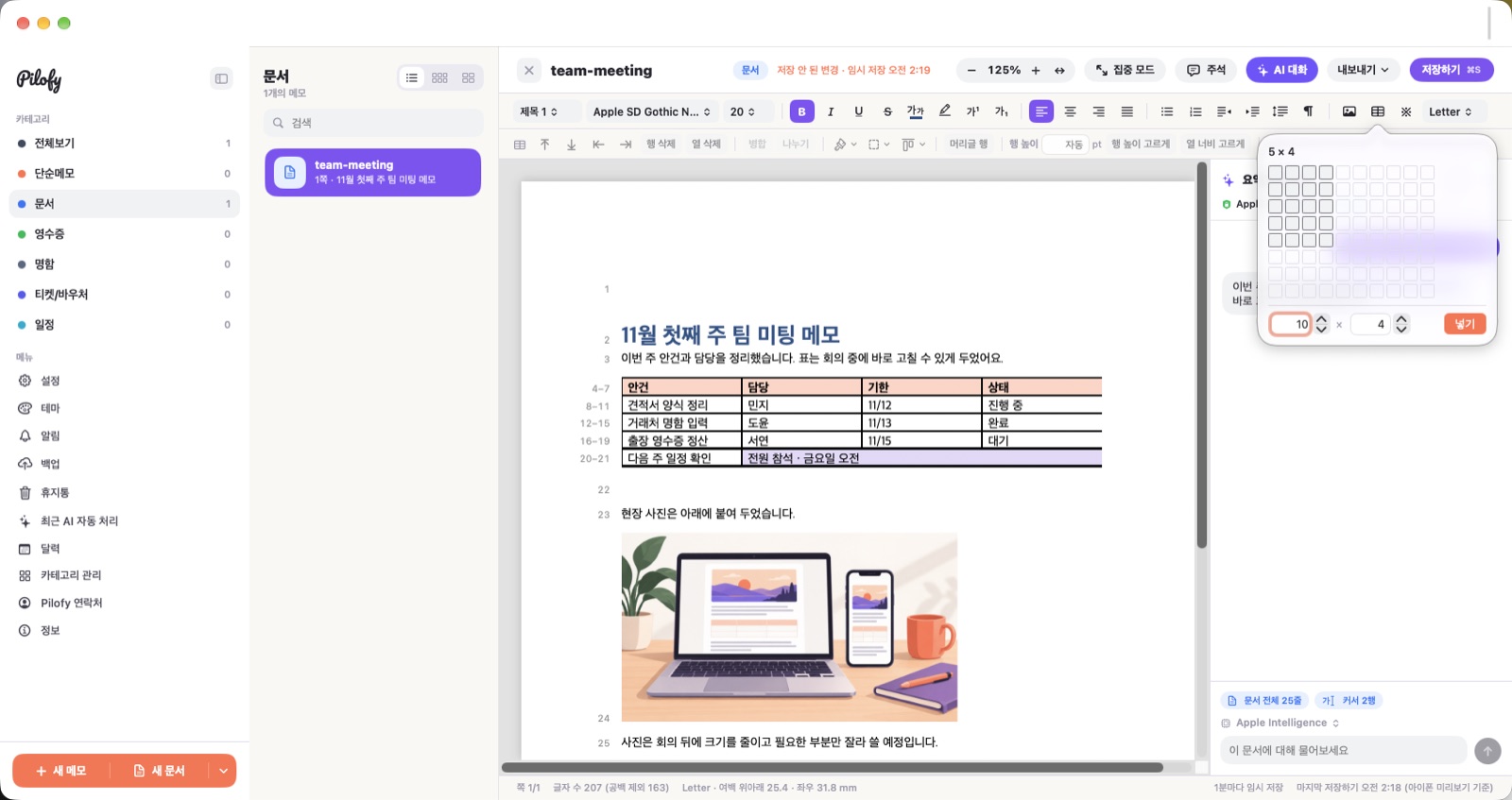
Working with rows and columns
Right-click on a table or use the table bar to add and delete rows and columns. Merging and splitting cells happens in the same place. On the keyboard, Tab moves to the next cell.
To select several cells at once, drag across them like in Excel. The selected cells are filled in as a block, so you can see right away what you're changing.

Styling
- You can change cell background colors and borders.
- You can align text in a cell to the top, middle, or bottom.
- If you set the first row as a header row, it shows in bold.
- There's a menu that evens out row heights and column widths. Select some cells and use it, and only those cells get the same width. The borders of the other columns stay where they are.
Column widths are fixed. They don't stretch when you write a lot of text. To resize a column or row, drag its border.
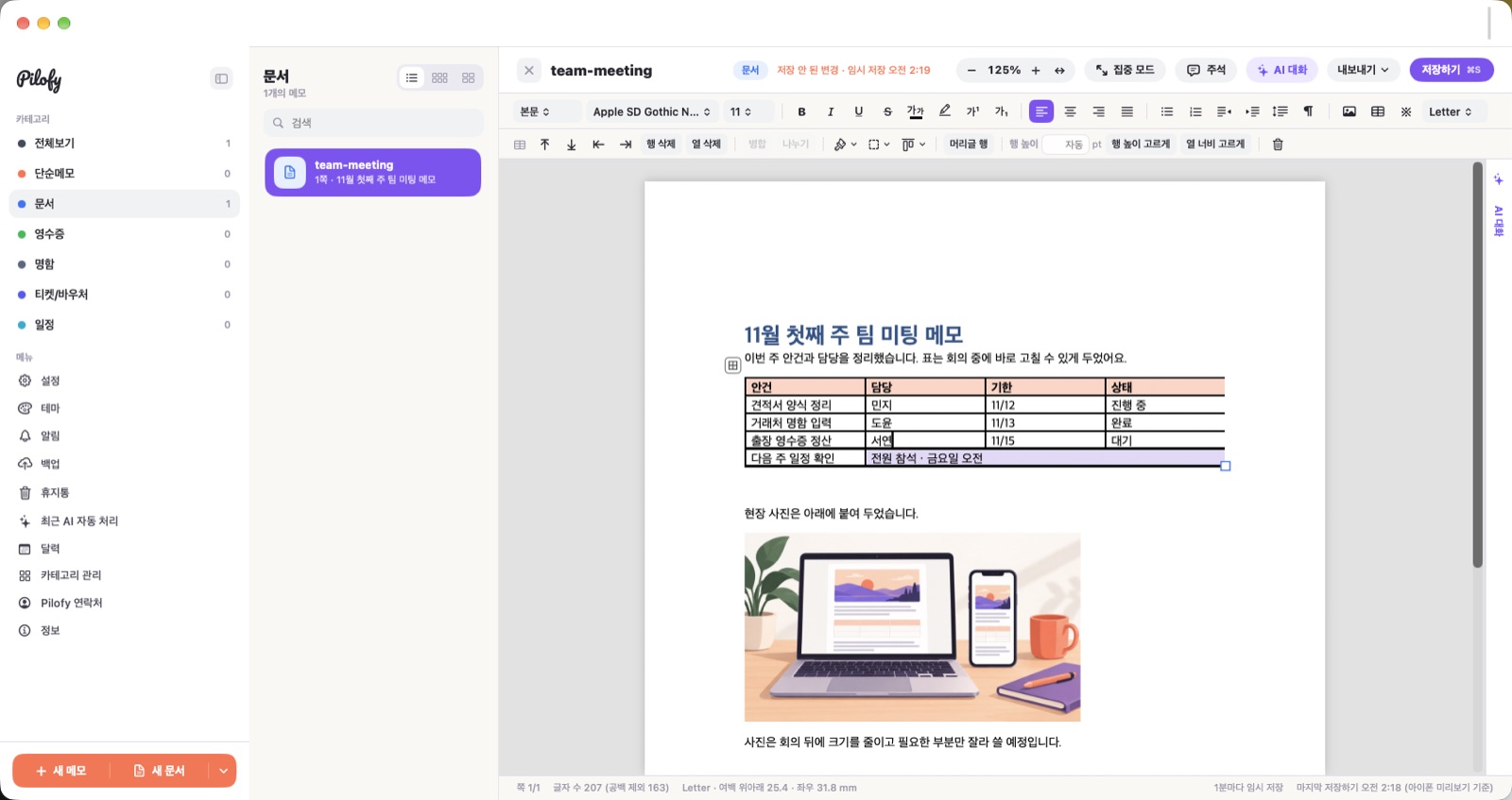
A table as one piece
Put the cursor inside a table and a handle appears at the corner. Click the handle to select the whole table, and press Delete to remove it at once. Drag the corner to resize the table. Even if a table is the very first thing in the document, pressing Return above it gives you a line to type on.
Importing tables from other files
When you import a Word, Markdown, or HTML file as a document, the tables inside come along. Word tables keep their merged cells, column widths, and background colors. In the other direction, a table made in Pilofy opens in Word looking the same. More on that in the next post, which covers Word files.
What it can't do yet
Formulas inside tables, sorting tables, and charts aren't in this release. For now we focused on creating and styling tables.
The Mac version isn't out yet. We'll post the date on this blog once it's set.