
Pilofy for Mac is coming soon: what's the same as iPhone, and what's only on Mac
An introduction to the upcoming Pilofy for Mac: what it shares with the iPhone app, the document editor and AI chat panel that only the Mac has, and how to move between phone and Mac.

Until now, Pilofy has been an iPhone app. With the 1.1.0 update, we plan to release a Mac version. Just like on the iPhone, you can toss in a photo or some text, and AI sorts it into receipts, business cards, tickets, and events. The Mac does have a few things the iPhone doesn't.
What's the same as iPhone
Writing notes, adding photos, and browsing a list sorted by category all work the same way. On the same iCloud account, notes you saved on your iPhone show up on the Mac. The "Save as an Event?" prompt on a note with a date, and pinning and locking notes, are the same too.
A document editor only on Mac
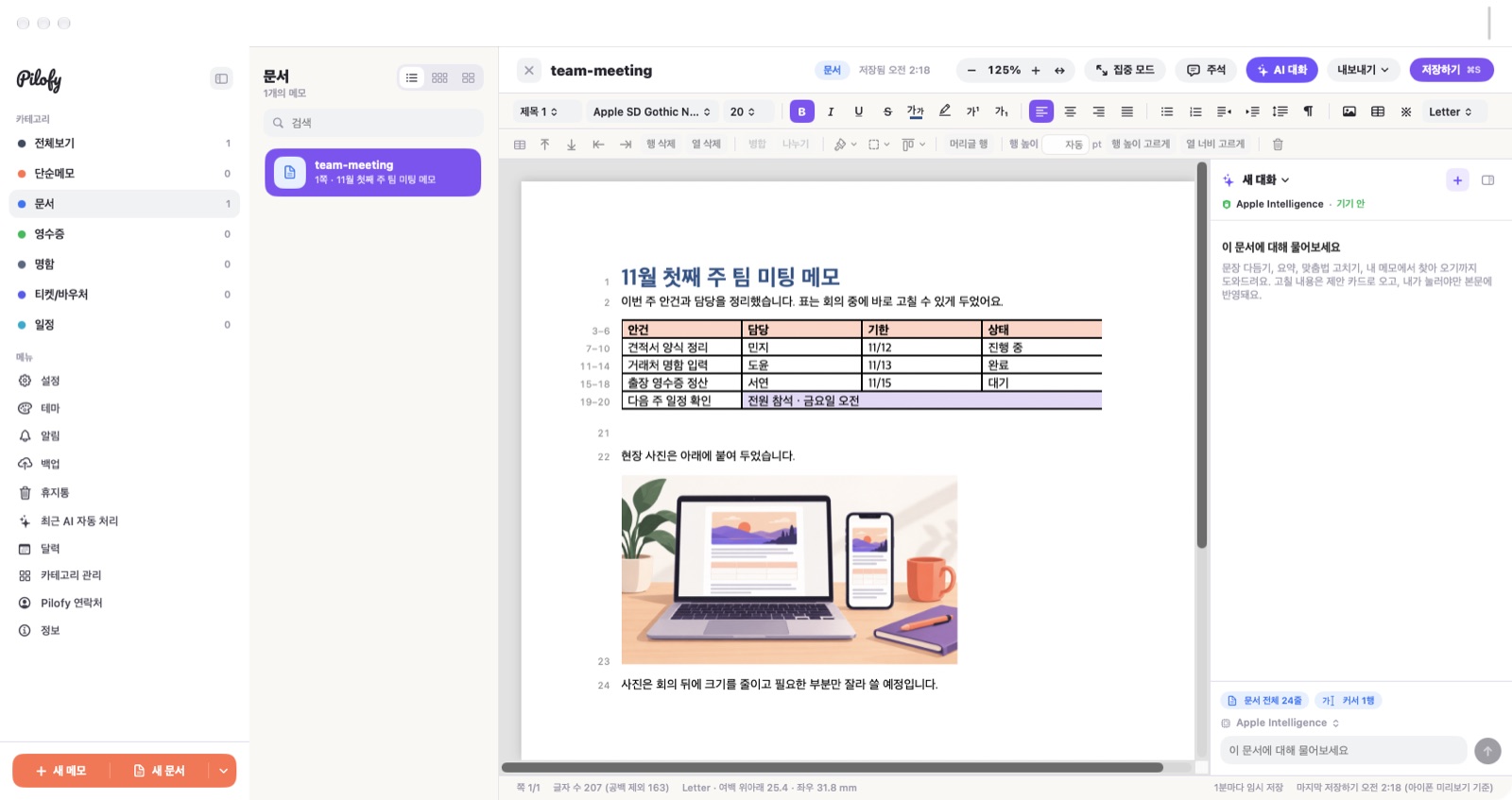
On the Mac, you can create documents separately from notes. Long writing like meeting minutes or proposals can be finished inside Pilofy.
- You can set headings, lists, Find and Replace, line spacing, and paper size (A4, Letter).
- You can insert a table, add or remove rows and columns, merge and split cells, and change cell backgrounds and borders. You can also drag to select several cells and make their column widths equal.
- You can insert an image and resize it with the mouse. Double-click an image to open the editor, where you can crop, rotate, flip, remove the background, and adjust brightness and color.
- Margins, page numbers, and a text watermark you set look the same on screen and in the PDF.
Trading files with Word
You can export a document as Word (.docx). You can also import a Word file and edit it in Pilofy. Merged table cells, images, lists, and page numbers stay as they were. You can import Markdown, text, RTF, HTML, and ODT files too. Drag a file in from Finder, or double-click it, and it opens as a document.
It's also handy for opening and polishing a Markdown file written by a tool like Claude or Codex. If a file is very long, a progress bar shows while it imports, and you can cancel partway.
An AI chat panel beside your notes
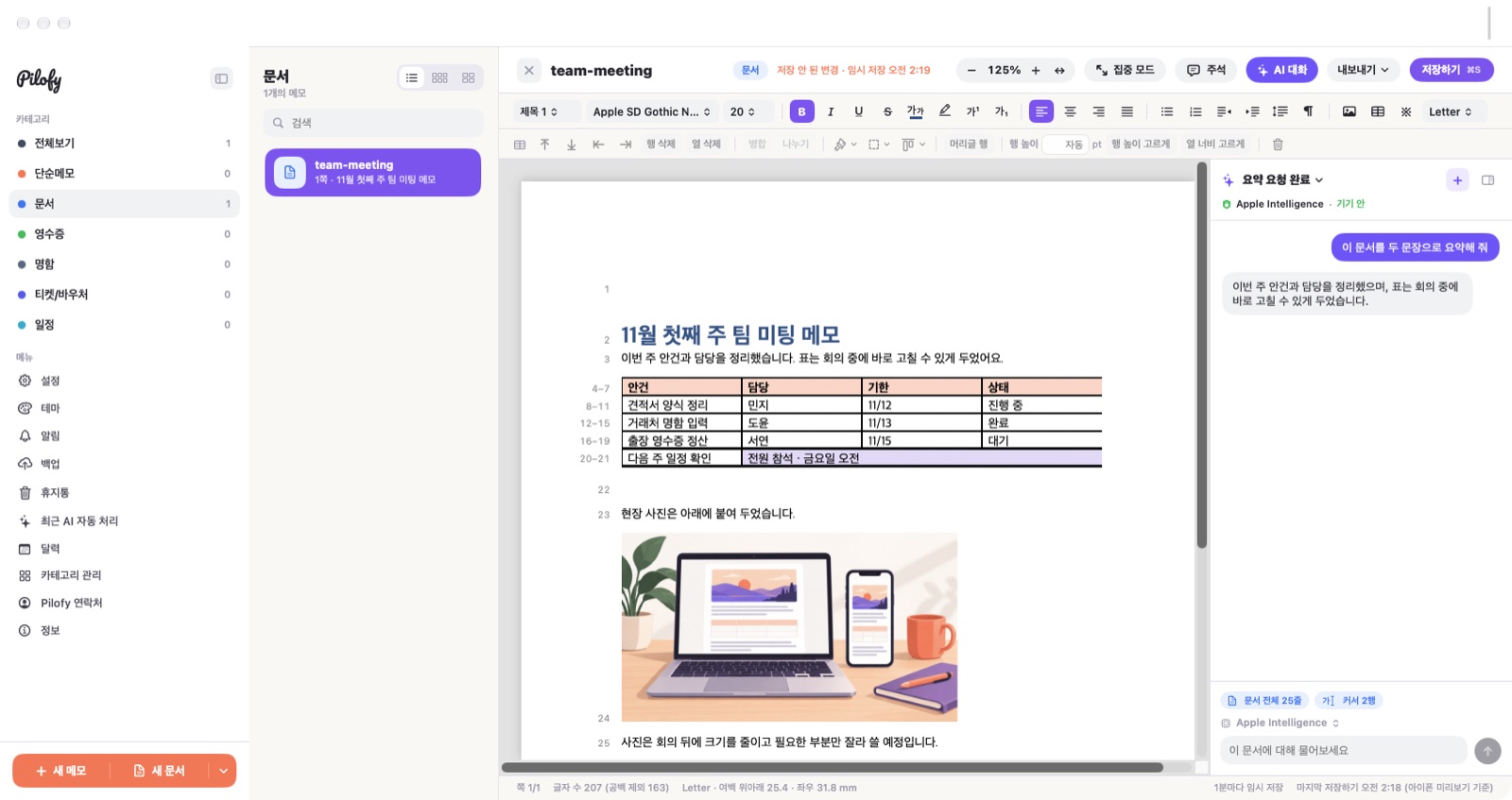
A chat panel opens next to a note. You can ask about the note or ask for a summary. When you like an answer, click "Apply to note" to put it into the note. It saves right away, but you can undo it.
On a Mac with Apple Intelligence, you can ask about every note in the app. Ask something like "What's the total of this month's receipts?" and the app calculates the count and total itself, while AI puts that result into words. We split it this way so AI doesn't guess at numbers. If you ask something like "Move the thin notes to Needs Cleanup," AI doesn't move them right away. It shows a card first, and the notes move only after you review it and click Apply.
The contents of locked notes are never sent to AI.
Read on your phone, fix on your Mac
Using both, it flows like this. You preview a document written on the Mac as a PDF on your iPhone. Leave a note or a suggested edit on a phrase you want to change, and those comments gather in the panel beside the Mac document editor. From there you can jump straight to the phrase, then apply the change or mark it resolved.
Also
Right-click in the list for Pin, Duplicate, and Share. You can also select several notes and drag them into a category.
The Mac version isn't out yet. We'll post the release date and how to use it on this blog once the date is set.